


Original price was: £299.00.£149.99Current price is: £149.99.
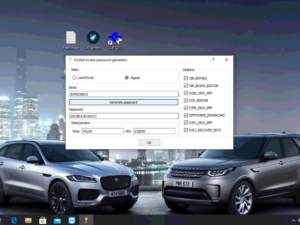
The JLR DoIP VCI is the sole JLR-approved interface for Pathfinder and all 2017+ models (L405/L494 etc.), while also supporting older vehicles via SDD. Featuring WiFi, CAN/MultiCAN/ISO9141/SCP networks, online programming, and VBF/E-XML editing – a future-proof diagnostic solution for every workshop.
SDD Pathfinder Product Overview
To begin with, the new JLR DOIP VCI WiFi is the only unit compatible with Pathfinder and all 2017+ JLR vehicles, enabling enhanced diagnostics, IMC firmware upgrades, and Apple CarPlay activation via USB module exchange. Additionally, its hardware is JLR-approved, replaces SDD VCIs, supports CAN/MultiCAN/ISO9141/SCP, works with all generations, includes a 2m USB cable, and features WiFi, VBF/E-XML editing, and easy J2534 updates.
-
- Jaguar Land Rover Approved device
- Replacement for JLR SDD VCI’s
- Covers CAN, MultiCAN, ISO9141, and SCP Vehicle Networks
- Suitable for Legacy, Current, and Future Vehicles
- 2m USB Cable as standard included
Moreover, it is easy to update for J2534 new functionality; the JLR VCI connects directly to the vehicle OBDII connector, and then it connects to the laptop via a USB cable for use with SDD. Once the J2534 DLL files are loaded, this product will allow normal operation with JLR SDD Diagnostic Tool. Consequently, all communication is possible with this device.
Hardware and Software Capabilities
Furthermore, the package includes a download link and remote installation of both JLR SDD Download software for you. The supported functions are as follows::
- Work with the models after 2017, support Pathfinder software application
- Work with the models before 2016, support SDD software.
- Support all of the SDD’s diagnostic & programming protocols.
- Support all of the Pathfinder’s diagnostic & programming protocol
- Support Pathfinder activation service offline.
- Support WIFI connection
- Support VBF file edit
- Support E-XML file edit
- Support SDD engineering software application
- Support Pathfinder engineering software application
- Support online programming, coding & key programming
- SDD software can update to the newest version with the assistance of the manufactures’ engineers, and perform online programming.
-
Similarly, Pathfinder can update to the newest version with the assistance of the manufacturers’ engineers, and perform online programming.
-
In addition, it can replace both the older JLR VCI box and the DoIP VCI box.
-
Overall, the new JLR DoIP VCI is the newest interface for Jaguar and Land Rover vehicles.
Pathfinder & SDD Comprehensive Vehicle Support
For instance, Pathfinder supports 2017+ models: Range Rover L405/L494/L462 and Jaguar F-Type, F-Pace, XE, XF. On the other hand, for 2014–2018 non-DoIP and older (2006–2014) vehicles, SDD is used. Moreover, the DoIP VCI also covers 2014–2016 MY vehicles, including XE, F-Pace, F-Type, XF, XJ, Evoque, Discovery Sport, and Range Rover models.
- XE (X760)
- F-Pace (X761)
- F-Type (X152)
- XF (X260)
- XJ (X351) – 16MY only
- Evoque (L538)
- Discovery Sport (L550)
- Range Rover (L405)
- Range Rover Sport (L494)
Meanwhile, pre‑2014 models use current systems, while 1998–2009 Land Rovers are compatible with the T4 Platform (Windows XP/10). Additionally, JLR releases updates via the diagnostic app. When installing, connect the VCI, run VCI Manager update (takes 12 mins), then set Pathfinder preferences (select D‑PDU, allow firewall access). Furthermore, always keep drivers up to date to avoid issues.
Before Installation:
First of all, note that PATHFINDER requires a DoIP VCI unit to communicate with the 2017 model year Range Rover L405, Range Rover Sport L494, and New Discovery L462. Secondly, the DoIP VCI must be the only VCI connected to the JLR Approved Diagnostic Equipment when using PATHFINDER. Also, future PATHFINDER communications will appear soon in the ‘Activity Stream’ section on Topix. Therefore, every retailer MUST have the DoIP VCI available in their workshop, as it is the only JLR approved VCI unit that can communicate with the 2017 model year vehicles identified earlier.
Please be aware that the following instructions are only applicable for the first use of the VCI. After that, once the initial installation and settings have been completed, the DoIP VCI is plug‑and‑play with PATHFINDER.
Now, follow these steps:
-
Insert the DoIP VCI USB cable into the DoIP VCI device and the JLR Approved Diagnostic Equipment. (Note: The ‘USB Input Device’ pop-up will appear; select ‘X’ and close it.)
-
Next, select the ‘Windows’ key.
-
Then, select ‘All Programs’.
-
After that, select ‘Bosch’.
-
Subsequently, select ‘VCI Software (JLR)’.
-
Then, select ‘VCI Manager (JLR)’.
-
Next, select the VCI icon displayed on the screen.
-
Afterwards, select ‘Connect to VCI’.
-
Then, select ‘VCI Update’.
-
Finally, select ‘Start Update’.
The ‘VCI Manager Information’ pop‑up will appear; then select ‘OK’ to continue. (Note: Do not disconnect the DoIP VCI during the update process, which will take approximately 12 minutes.) Once completed, the VCI will automatically restart and emit an audible beep. After that, select ‘OK’ to continue, then select ‘X’ and close the ‘VCI Manager’. The VCI is now ready for use.
Setting Preferences in PATHFINDER
To set preferences, proceed as follows:
First, select the PATHFINDER icon on the ‘JLR Application Launcher’.
Second, select ‘Other User’ and enter your ‘User Identification’ and password.
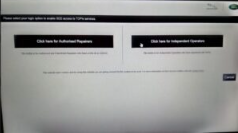
Then, select ‘Independent Operator’ or ‘Authorised Repairer’, then select ‘OK’ and log in.
Next, read the warning pop‑up and select ‘OK’.
After that, select the three‑bar icon in the top right, then select the ‘Settings’ icon.
Then, select the ‘Communication Interface’ tab and choose ‘D‑PDU’.
When the ‘Windows Security Alert – Windows Firewall’ pop‑up appears, do not select ‘Cancel’ – instead, select both ‘Private Networks’ and ‘Public Networks’, then select ‘Allow Access’.
Finally, the preferences are now set. Again, once the initial configuration is done, the DoIP VCI becomes plug‑and‑play with PATHFINDER.
Only logged in customers who have purchased this product may leave a review.
Related products

Accessories
Accessories
Accessories

JLR Software

JLR Spare Parts
Accessories

Reviews
There are no reviews yet.